Applying for Leave
One must be logged into the Jupiter Platform to apply for. If not logged in, refer to the LOGGING IN page.
- After logging in, a Jupiter Workspace will be shown. Click or tap on Leave Application
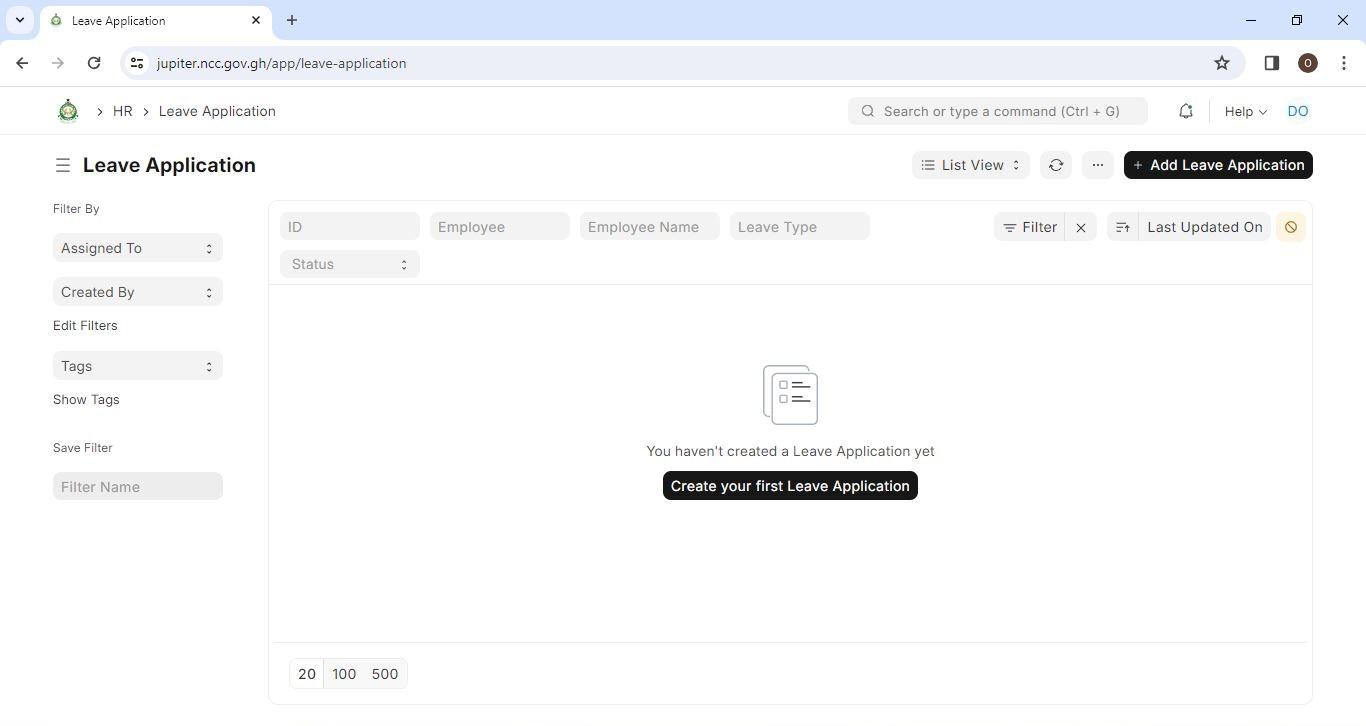
.jpg) 2. Click or tap on Add Leave Application in the black box at the top right of the screen
2. Click or tap on Add Leave Application in the black box at the top right of the screen
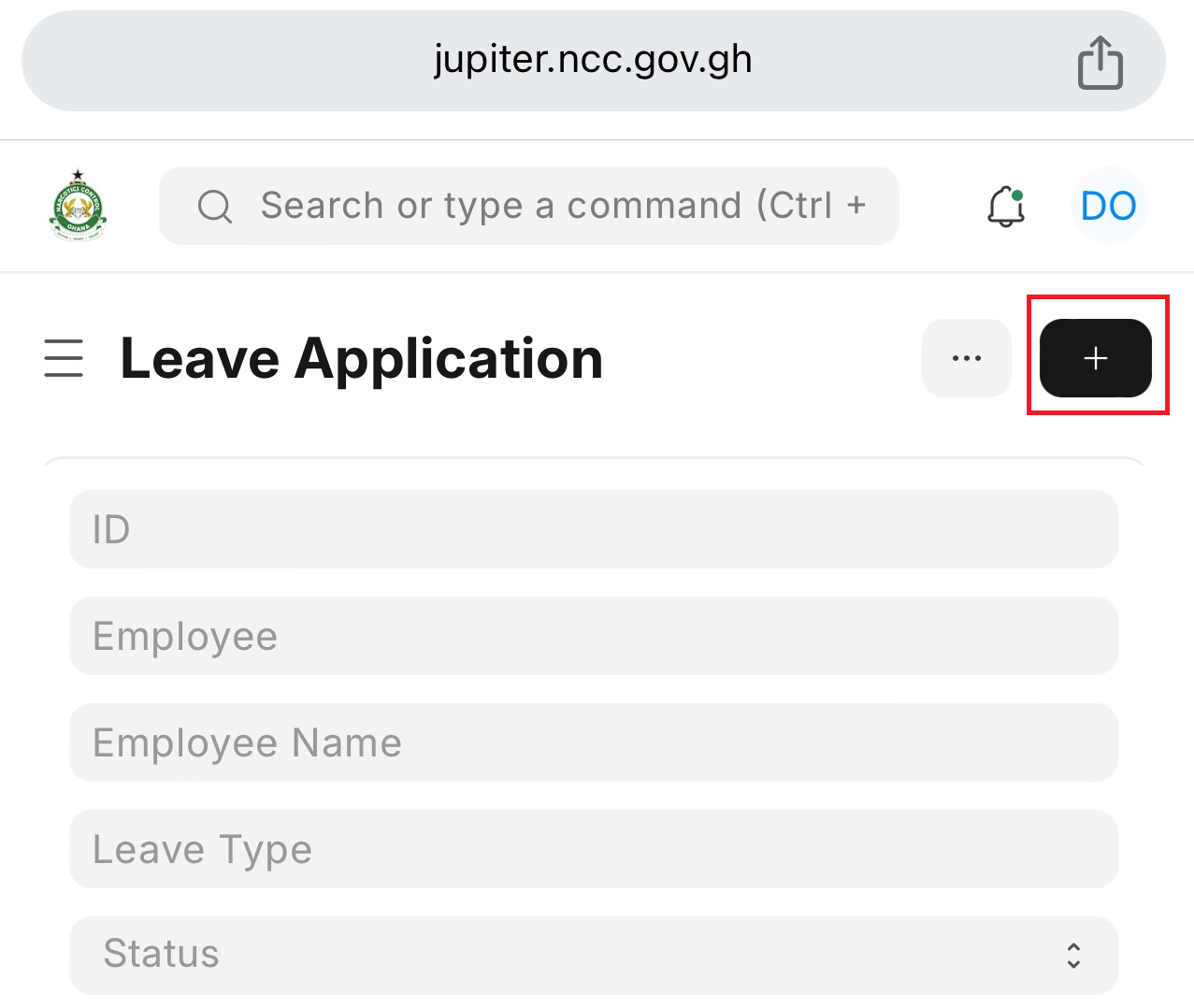
If the Jupiter platform is being accessed from a mobile phone, click or tap the plus button highlighted in the picture below.
3. A table will be displayed showing all allocated leaves and with each leave the corresponding total allocated leave days, used leave days, leaves pending approval and available leave days.
Note: All fields with asterisks (*) are mandatory fields and must be filled.
4. A. To choose a leave type, click or tap in the `Leave Type` field. A drop-down will appear with the various leave types allocated. Select the leave type to apply for.
A leave type such as Sick leave, Compassionate leave, Maternity leave, Paternity leave, Casual leave, or Disembarkation leave will require a proof and an **Attach Document** button appears. Click on **Attach** to upload a proof.
B. In the `Phone Number` field, type a valid phone number that can be reached while away on leave.
C. Type a valid address in the `Address` field.
D. Click or tap in the `From Date` field. A calendar will pop up. Select when the leave should begin.
E. Click or tap in the `To Date` field to select when the leave should end.
The system calculates and displays the total leave days and the leave balance before application.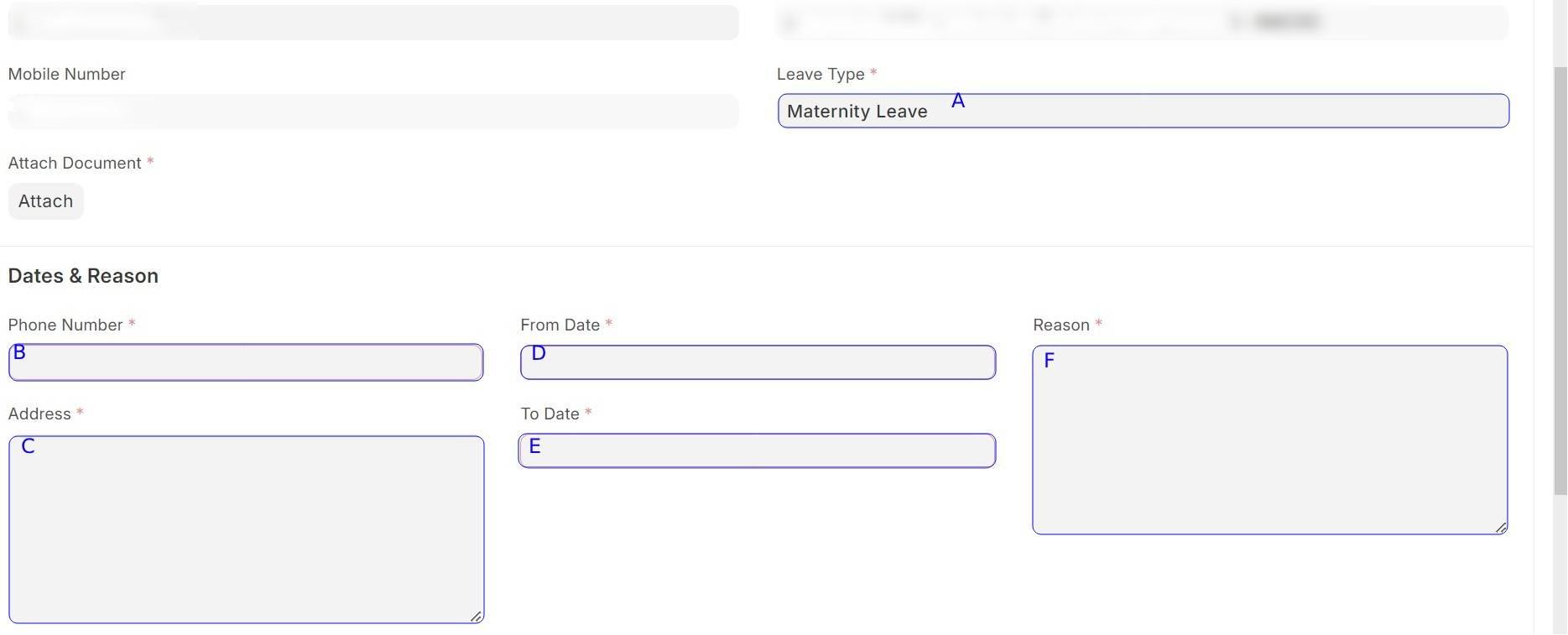
5. After filling all fields, click or tap on **Save** at the top of the page.
6. After clicking on **Save** , the status of the application changes to `Draft` , indicated by the **Draft** label next to the name of the applicant at the top left corner, allowing for later amendments before submitting it for approval.
.jpg)
7. To submit leave application for approval, click or tap on **Actions**. then select **Submit Application**573d81.png)


573d81.png)